Marione Power Point Template: A Versatile Presentation Toolkit
There's a moment in every project when you realize your slides need to do more than just display information—they need to tell a story, build trust, and hold attention. Whether you're pitching to investors, teaching a workshop, or sharing quarterly results, the visual framework around your message matters just as much as the words themselves. That's where a thoughtfully designed presentation template can save hours of frustration and elevate the final result from forgettable to impactful.
What Makes This Template Stand Out
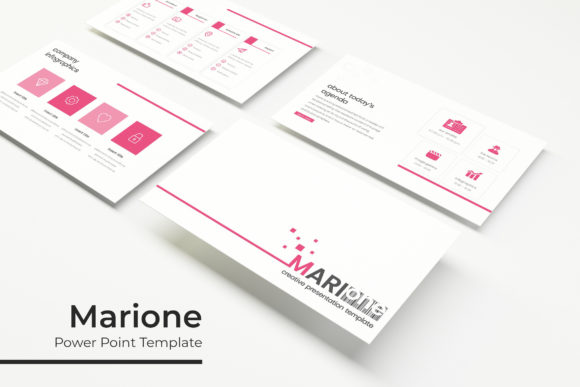
The Marione Power Point Template isn't just another slide deck with generic placeholders. It's a comprehensive system built around 150+ total slides, organized into five premade color variations with 30 slides dedicated to each palette. This structure alone solves one of the most common headaches for anyone building presentations: maintaining visual consistency without spending an entire afternoon adjusting colors slide by slide.
Each color scheme has been carefully curated to feel cohesive, so you can pick the one that aligns with your brand or your client's aesthetic and immediately start working. The five options give you enough range to match corporate environments, creative agencies, educational settings, or startup culture without feeling like you're settling for "close enough."
What really catches the eye, though, are the handcrafted infographics embedded throughout the deck. These aren't pulled from a generic clipart library. They're purpose-built visual elements—charts, timelines, process flows, comparison grids—that help transform raw data into something your audience can actually absorb and remember. If you've ever watched a room full of people glaze over during a wall of bullet points, you understand the value of a well-placed infographic.
Designed for Real-World Flexibility
One of the standout features of the Marione template is how it handles images. The picture placeholders are fully resizable and editable, and they support drag-and-drop functionality. This means you're not wrestling with awkward cropping or trying to manually fit a photo into a predetermined shape. Drop your image in, adjust the size, and move on to the next slide. It sounds simple, but anyone who has spent 20 minutes trying to center an image in a poorly designed template knows how much this matters.
The entire system is built on master slides, which is a technical detail that translates directly into practical benefits. When you edit the master, changes cascade through every slide that uses it. Want to update your company's accent color across 30 slides? Do it once on the master and watch the rest update automatically. This pixel-perfect approach to slide design means you spend less time on repetitive formatting and more time refining your actual content.
The package includes five PPTX files in widescreen format, each corresponding to one of the five color variations. You also get a "Readme First" document to help you get oriented quickly, and the font used throughout the template is free to download—a link is included. This is a detail that matters more than people realize. Nothing derails a polished presentation faster than discovering the font you've been using requires a license you don't have.
Who Benefits Most from This Kind of Template
Small business owners who regularly present to clients, partners, or potential investors will find this template immediately useful. Instead of building a deck from scratch every time or recycling the same tired PowerPoint from three years ago, you have a professional foundation that adapts to different contexts. The section break slides are particularly helpful for longer presentations, giving your audience visual cues that signal a shift in topic and helping them stay oriented.
Content creators and marketers can use the portfolio and gallery slides to showcase work samples, campaign results, or brand guidelines. These layouts are designed to let visuals breathe, which is essential when you're presenting design work, photography, or product imagery. The clean spacing and balanced composition mean your content doesn't compete with the template for attention.
Educators and consultants will appreciate the infographic slides for breaking down complex concepts. Whether you're explaining a business framework, walking through a research methodology, or illustrating a step-by-step process, having pre-built visual structures saves significant time and produces more engaging results than building charts from scratch in PowerPoint's native tools.
Practical Tips for Getting the Most Out of It
Before diving into slide design, take ten minutes to review all five color variations. Sometimes the palette that feels most obvious isn't the one that actually works best with your content. If your brand colors are dark navy and gold, for instance, a template variation with warm neutrals might complement your imagery better than one that tries to match your exact brand tones.
Don't overlook the section break slides. They're easy to skip past when you're focused on content slides, but they serve an important structural role. In a 30-slide presentation, section breaks help your audience mentally organize information and create natural pause points. Use them strategically—typically before major shifts in topic or when transitioning from background information to recommendations.
When working with the drag-and-drop image placeholders, prepare your images in advance at a resolution that matches widescreen dimensions. This prevents the awkward stretching or compression that happens when you force a square image into a rectangular frame. A few minutes of image preparation beforehand will save you from pixelated or distorted visuals in your final deck.
Also, take advantage of the editable graphics. The infographics and visual elements aren't locked, so you can adjust colors, move components, or resize elements to better fit your specific data. If a timeline shows five milestones but you only have three, delete the extras and redistribute the spacing. The template gives you a strong starting point, but the best presentations always involve some customization.
Important Details to Keep in Mind
The photographs and images shown in the template preview are not included in the download. They're there to demonstrate how the slides look when populated with real content. You'll need to supply your own images, which is actually preferable because it ensures your presentation reflects your actual work, your team, and your brand rather than generic stock photography.
The included font is free to download, and the link provided in the package makes this straightforward. Still, if you plan to use the template for client work or commercial projects, double-check the font's license terms to confirm it covers your intended use. Most free fonts allow commercial use, but it's always worth verifying before a project goes to print or gets distributed widely.
This template works particularly well for anyone building a brand identity system. The five color variations can serve as a starting point for exploring different brand directions, and the consistent slide structure helps you compare how different palettes feel when applied to the same content. It's a practical way to make color decisions with real context rather than staring at swatches in isolation.
For those who present regularly—whether weekly team meetings, monthly client reviews, or quarterly business updates—having a reliable, professional template eliminates the recurring friction of starting from zero. The Marione system gives you enough variety across its 150+ slides to keep presentations feeling fresh while maintaining the visual consistency that builds brand recognition over time. Your audience may never consciously notice the design system behind your slides, but they'll definitely notice when it's missing.